Peer editing in Google Docs means sharing a draft so a classmate can leave comments and tracked suggestions without touching your original text. You set the sharing level to Commenter, the reviewer switches the mode dropdown to Suggesting, and you accept or reject each change when you revise. Most students get their first review done in about 20 minutes once the access is set up correctly.
This guide covers both sides of the process. Teachers get the setup and permission walkthrough, and students get the editing mechanics, step by step with the exact menu paths. The current Google Docs interface in the browser is what every path below describes; the mobile app and the Classroom add-on hide some of these menus, so use a laptop or desktop when you can.
Table of Contents
- What You Need
- Step-by-Step: How to Use Google Docs for Peer Editing
- 1. Set Up the Shared Document
- 2. Choose the Right Editing Mode: How to Use Google Docs for Peer Editing in Suggesting Mode
- 3. Assign Each Peer a Section
- 4. Leave Specific Comments
- 5. Suggest Edits with Track Changes
- 6. Review and Respond to Feedback
- 7. Check Permissions and Submit the Final Draft
- Common Mistakes
- Frequently Asked Questions
- Can two students edit the same Google Doc at the same time?
- Should I use comments or Suggesting mode for peer editing?
- How do I turn off suggestions in Google Docs?
- Can my teacher see the comments and edits I make in a shared document?
- What if I accidentally change the original document while peer editing?
- What does Ctrl+K do in Google Docs?
- Conclusion
What You Need
You need four things, and one of them causes most of the frustration: correct access level. Getting the permission wrong is why students hit “Request access” walls halfway through a class period.
- A Google account for every reviewer, so comments carry a name instead of showing up anonymously.
- The draft as a Google Doc, not a Word file or PDF. If it opens in Preview, use File > Save as Google Docs in Drive, or download it and reopen it in Docs.
- The assignment instructions and rubric, so the reviewer knows what counts as useful feedback.
- A working internet connection, since Google Docs runs in the browser rather than saving a local file.
Account access comes in three levels, and they decide what a reviewer can physically do. A Viewer can read and copy but not mark anything. A Commenter can highlight text, add margin comments, and, in shared files, use Suggesting mode. An Editor can rewrite, delete, and accept suggestions, which is exactly what a peer should not have.
If your school runs on Google Workspace for Education, student accounts are already provisioned and you do not need personal Gmail addresses. Using a personal account to share a school document puts the file outside your school’s data agreement, which matters if you are handling anything tied to a student’s records. Where a review must be unattributed, use school-managed accounts and let the teacher map identities instead of asking students to hand out fresh email addresses.
Step-by-Step: How to Use Google Docs for Peer Editing
Here is the full sequence, in the order that avoids the usual problems. Steps 1 and 2 belong to the person sharing the draft, steps 3 through 6 belong to the reviewer, and step 7 belongs to the writer at the end.
1. Set Up the Shared Document
Open the draft, click Share in the top right, then add people by email with Commenter selected. Adding named addresses is slower than link sharing, but it keeps the file private and gives you a record of exactly who was invited.
If you need to share with anyone who has the link, click Anyone with the link, set the role to Commenter, and copy the link. The older path through General access > Change > Anyone with the link still appears in some classrooms, but the current dialog puts it right on the Share screen. The shortcut in the top-right corner of the Share box copies the link to your clipboard.
| Permission level | What a reviewer can do | Privacy note |
|---|---|---|
| Restricted | Nothing. People outside the list see a request-access page. | Safest. Only works when you add every reviewer by email. |
| Viewer | Read, search, copy, and download. | Nothing they mark is recorded, so you cannot prove a review happened. |
| Commenter | Add and reply to comments, use Suggesting mode in shared files. | The right level for most peer review. Original text stays protected. |
| Editor | Edit, delete, accept or reject suggestions, reshare. | Risky for a first round of review. Use it only after the peer is done. |
How you can tell it worked: paste the link into a private browser window or ask a classmate to open it on a phone before class. If you get a “Request access” screen instead of the document, the role is set to Restricted or the link came from a different file than the one you meant to share. Check the title bar and the last saved time before anyone starts writing, so a reviewer is not marking an old draft.
2. Choose the Right Editing Mode: How to Use Google Docs for Peer Editing in Suggesting Mode
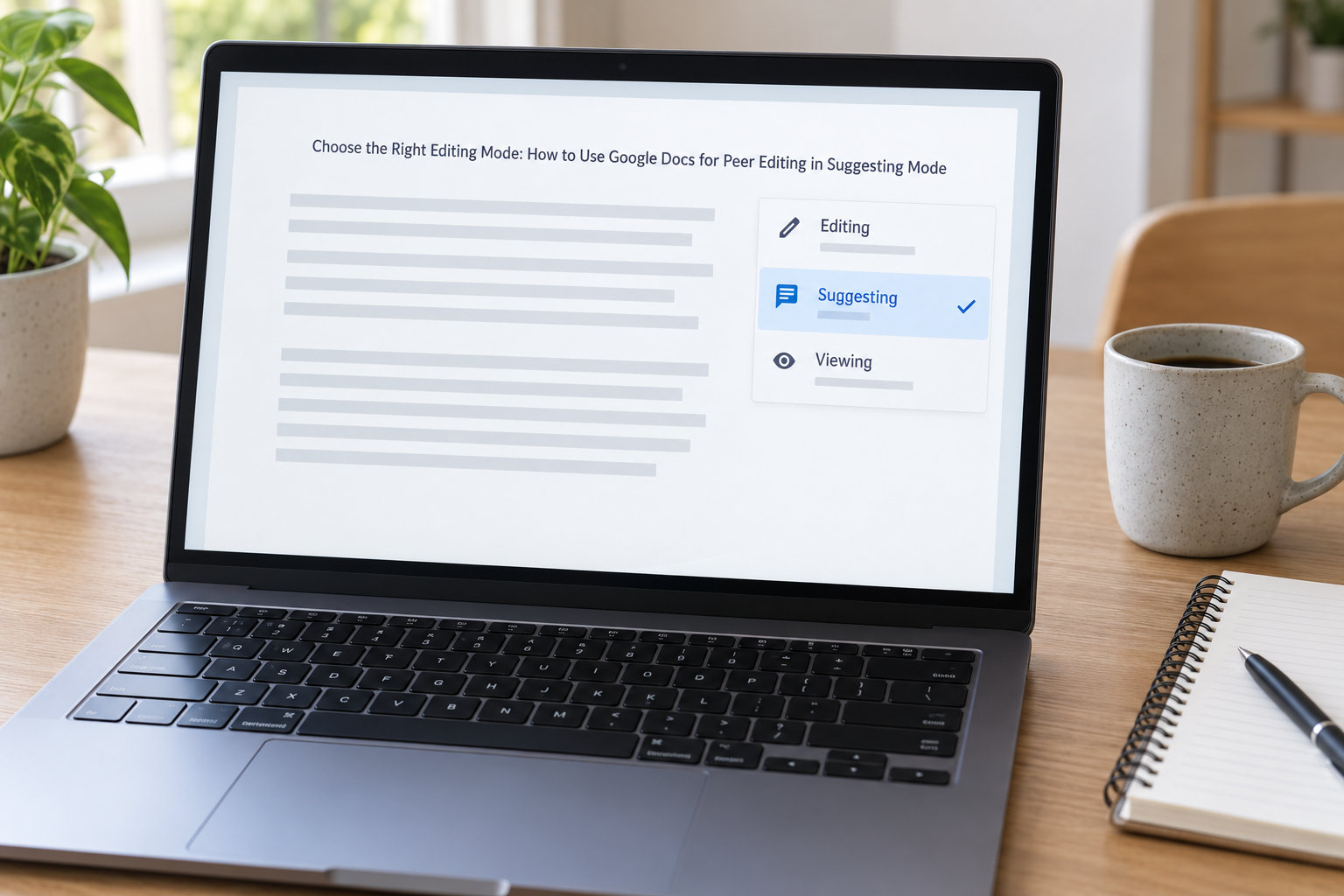
Editing, Suggesting, and Viewing are the three modes, and they live in a dropdown just to the right of the Save button on the toolbar. Suggesting mode records every insertion as an underline and every deletion as a strikethrough, so the writer can accept or reject each one individually instead of trying to guess what changed.
Use Editing mode only when the person is the writer or has finished reviewing. Use Suggesting mode for the whole review pass. Use Viewing mode when you want someone to read a finished draft without any ability to mark it up.
How you can tell it worked: type a single space in the middle of a sentence. If the mode is set correctly, the space appears underlined in a different color and the rest of the text does not move into Editing mode. Press Ctrl+Z once to remove the test space. On a Mac, the same shortcut is Command+Z.
To switch a single file to Suggesting mode, open it from inside Drive rather than from a shared drive shortcut, then use File > Mode > Suggesting. Shared files from a teacher sometimes force the mode, and the dropdown will appear greyed out. If that happens, ask the owner to make a copy with the sharing settings you need.
3. Assign Each Peer a Section
Decide who reviews what before anyone opens the file, or two people will mark the same paragraph and skip the ending entirely. For a short draft of a few pages, give each reviewer one clearly bounded section. For longer work, split by body paragraph numbers rather than by page, since page numbers shift as edits land.
A workable convention is a “Reviewer 1, Reviewer 2, Reviewer 3” system. Each student receives a copy of every classmate’s draft, and the copies are numbered so nobody has to match names to drafts by eye. Teachers running this at scale report that manual copying and renaming is the slowest part of the whole process, and for a class of 20 to 25 students it takes longer than the review itself. Naming a copy with the reviewer’s number right after File > Make a copy keeps the mapping simple.
Confirm the assignments in one visible place. A short list at the top of the shared file or a pinned comment naming each person and their section works better than an email thread, and it gives you something to point at when someone claims they never knew which part was theirs.
4. Leave Specific Comments
To add a comment, select or highlight the exact phrase you mean, then choose Insert > Comment, or press Ctrl+Alt+M. Type your note, press the comment button to post it, and the comment attaches to that highlighted text rather than floating loose at the end of the document. Press Ctrl+K if the concern is about a source and you want to link the actual page.
Ask a question instead of rewriting the sentence. A comment that says “the thesis says one thing but this paragraph argues another” gives the writer something to solve. A comment that says “change this to because schools lack funding” takes the decision away from them and leaves you doing the revision. A short, usable example on an unclear thesis:
Comment on “Many students believe that homework is unhelpful”: “The opening claim and this paragraph’s evidence don’t match. The evidence here is about sleep, not homework. Which one do you want to lead with?”
How you can tell it worked: the comment marker appears in the margin next to the highlighted text, and the writer gets a notification by email and inside the file. If a comment shows an anonymous icon instead of a name, the reviewer was not signed in. Send them back to sign in and delete the anonymous comment, then repost it.
5. Suggest Edits with Track Changes
In Suggesting mode, type and the text appears underlined in your color; select something and press Delete and it shows as a strikethrough. You can also use the toolbar’s three stacked options to apply bold or italic as a suggested formatting change rather than a direct one.
Three kinds of edits are worth suggesting. Grammar and mechanics fixes, such as a subject-verb agreement correction or a comma splice, are safe and quick. Evidence edits, such as flagging a claim that has no citation attached, are better as a comment than a rewrite. Organization edits, such as moving a body paragraph, are worth mentioning in a comment because dragging text around in Suggesting mode produces a mess of strikethroughs that nobody can read.
One firm rule: do not change the writer’s voice. If a draft is formal and you think it would be better with contractions, say so in a comment and let the writer decide. Peer review that produces a paper in two different voices teaches the wrong lesson. A reviewer who is unsure whether something is an error or a deliberate choice should ask.
How you can tell it worked: turn on View > Show Suggesting and read the draft as a clean document, then turn on View > Show All Markup to see every proposed change at once. The clean view is the best way to judge whether the argument still holds with a reviewer’s additions in place.
6. Review and Respond to Feedback
The writer’s turn comes last. Open the comment sidebar with the icon at the top right, read each thread, and reply where a question needs context. Then work through the suggestions in order. The Accept button and Reject button sit at the right of each suggestion; Accept all and Reject all exist in the dropdown but are risky, because they take your careful read out of the process.
Keep the feedback that improves the piece and reject the changes that do not. A reviewer who misread a section or disliked a topic sentence is not a failure of the review, and rejecting a suggestion is a legitimate reading decision, not an insult. Reply briefly when you reject, so the reviewer learns something.
If something goes wrong, version history is the safety net. Go to File > Version history > See version history, click the clock icon in the timeline, read the named versions, and use Preview or Restore on an earlier one. Named versions are created at moments like submitting to an assignment, so the timeline often shows a clean before-and-after of what your reviewer changed. Restoring creates a new copy of that version, so nothing from the current draft disappears.
7. Check Permissions and Submit the Final Draft
Before submitting, resolve the comment threads you have handled. Open the three-dot menu on a thread and choose Resolve, which strikes it through and drops it out of the open list. Then change sharing so no one else can keep editing: click Share, remove the reviewers’ access, or switch General access back to Restricted.
Read the draft once with the suggestion balloons hidden, which is the view your teacher will see. Look for leftover highlights, a comment thread that never got a reply, and any suggestion you accepted by accident.
Export a PDF with File > Download > PDF if the class system wants a fixed copy, or download as Microsoft Word (.docx) if the teacher accepts Track Changes. With the balloons off, accepted and rejected changes are flattened, so tell your teacher which version is final before you hand it in. Upload through the required class system rather than emailing a file, since a submitted assignment is easier for a teacher to track.
Common Mistakes
Almost every peer review problem traces back to one of six things. Each has a quick fix, and the first two account for most of the complaints teachers post about the process.
Accidentally overwriting the draft. A reviewer sits in Editing mode and replaces a paragraph with a rewritten version. The damage is real but recoverable. Undo with Ctrl+Z, or restore an earlier version from the timeline. Prevention is the fix here: confirm Suggesting mode is selected before the first keystroke.
Using Editing mode when Suggesting mode was required. Sometimes the mode is set but a shortcut resets it, or a file opened from a shared drive forces Editing. Check the mode dropdown again after any accidental restart, and keep a test keystroke as part of your routine.
Comments that show up anonymously. The reviewer was browsing without being signed in. Their feedback is unattributable, which usually means it does not count. Sign in, delete the anonymous comment, and repost it.
Reviewing only spelling. A reviewer who fixes commas and stops has done surface work. Give reviewers a protocol: read once without the pen, note where you got lost or bored, then mark. Two common named routines are Write Like a Reader, which asks what a new reader would need explained, and Paramedic Editing, which stops at the first serious problem rather than polishing a paragraph that may get cut.
Forgetting to resolve comments. An open thread left in the final draft reads as unfinished work. Clear them before you export.
Leaving the document shared after the deadline. Classmates keep access to a finished paper indefinitely. Switch General access back to Restricted, or remove individual names, once the revision window closes. This is also the fastest way to avoid a consent problem later.
Teachers who grade the review itself can use a short rubric. Copy these five rows into a Google Form or the top of the shared file:
| Criterion | Full credit looks like | Points |
|---|---|---|
| Coverage | Every assigned section has at least one comment | 4 |
| Specificity | Comments attach to quoted text, not to the document in general | 4 |
| Questioning | Comments ask the writer something to solve, not a line to copy | 4 |
| Protection of voice | No rewrite of the writer’s sentences; mechanics only | 4 |
| Care of the file | Suggesting mode used, threads replied to, sharing set back to Restricted | 4 |
Teachers who want the scores in one place often pair the comment step with a Google Form, so the rubric responses land in a spreadsheet instead of in a thread nobody opens again. Run the Form after the Doc work rather than during it, and ask the reviewer to paste their comment thread link in the last question.
Frequently Asked Questions
Can two students edit the same Google Doc at the same time?
Yes. Google Docs saves continuously, so several people can have the same file open and work in it at once without overwriting each other. What you see depends on each person’s mode: Editing mode changes the text directly, Suggesting mode shows tracked insertions and deletions in the reviewer’s color, and Viewer or Commenter access keeps the original text protected. A short lag of a second or two between keystrokes is normal, not a sign of lost work.
Should I use comments or Suggesting mode for peer editing?
Use both, for different jobs. Comments carry questions, evidence gaps, and anything that needs a paragraph moved. Suggesting mode is for changes you could type yourself, such as grammar, punctuation, and word-level fixes. A reviewer who only uses Suggesting mode often rewrites the writer’s argument; a reviewer who only comments can miss the obvious comma. The fastest rule is if you can say it in a sentence, comment, and if it fits on the page as-is, suggest it.
How do I turn off suggestions in Google Docs?
Use the mode dropdown to the right of the Save button on the toolbar and choose Editing, or use File Mode Editing. The keyboard shortcut for Suggesting mode on a Windows or Chromebook keyboard is Ctrl+Alt+Shift, and Command+Option+Shift on a Mac, which toggles between Editing and Suggesting. If the dropdown is greyed out, the file was opened as a restricted shared file and the owner controls the mode, so ask them to send a copy instead.
Can my teacher see the comments and edits I make in a shared document?
Yes, and you should assume they can. Anyone with Editor access on a file can open the comment sidebar and read every thread, and the owner can open version history to see each revision, the editor’s name, and the time. That is exactly how a teacher verifies that a review actually happened, so treat shared documents as classwork rather than as private notes. If your assignment calls for unattributed feedback, ask for the process your teacher uses for that instead of signing out.
What if I accidentally change the original document while peer editing?
Press Ctrl+Z, or Command+Z on a Mac, straight away to undo the edit. If that does not restore it, open File Version history See version history, click a version from before your change, and use Preview to check it before choosing Restore. Restoring brings back an earlier state as a new copy, so your current draft is not destroyed. Then check your mode dropdown, since an accidental change almost always means you were in Editing mode.
What does Ctrl+K do in Google Docs?
Ctrl+K opens the Insert Link dialog, where you can paste a web address or a Drive file, add link text, and decide whether the link opens in a new tab. It is the fastest way for a reviewer to attach a source or a rubric to a comment thread. Press Escape to cancel without inserting anything.
Conclusion
Start with the two settings that cause most failures: confirm the reviewer has Commenter access, and confirm Suggesting mode is selected before the first keystroke. After that, the process runs in order: share by named email, assign each reviewer a section, comment on specific quoted text, suggest only the edits you could type yourself, and keep the writer’s voice intact.
When the revision is done, resolve the threads, switch access back to Restricted, and check the draft once with the suggestion balloons hidden. That last read catches more problems than any single step earlier in the process.